Once the receipt is complete, you can export it.
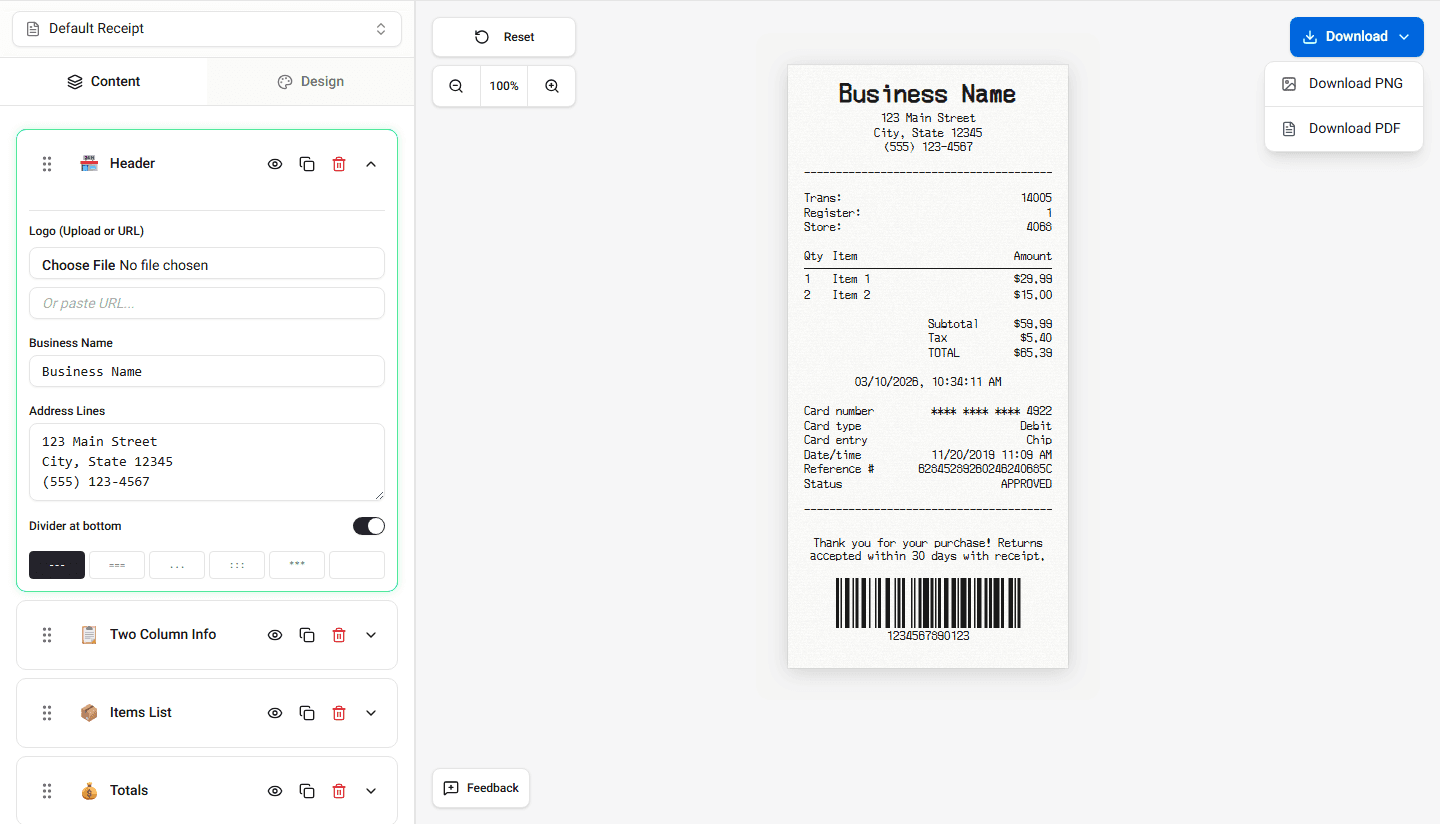
You can download the receipt or print it directly.
Downloading the Receipt
Follow these steps to download your receipt.
Step 1 - Complete the Receipt
Make sure all fields are filled.
Review the receipt preview.
Step 2 - Click Download
Click the Download button.
The builder will generate a downloadable file.
Step 3 - Save the File
Save the receipt to your device.
You can use the file for digital records or printing.
Printing the Receipt
You can also print the receipt directly.
Step 1 - Open the Print Option
Click Print.
Step 2 - Choose Printer Settings
Select your printer and adjust settings if needed.
Step 3 - Print the Receipt
Click Print.
The printed receipt will match the layout shown in the preview.
Summary
When the receipt is complete, you can download or print it. The exported version keeps the same layout shown in the preview.
Last updated on