Items represent the products or services included in a purchase. Each item appears as a row in the receipt.
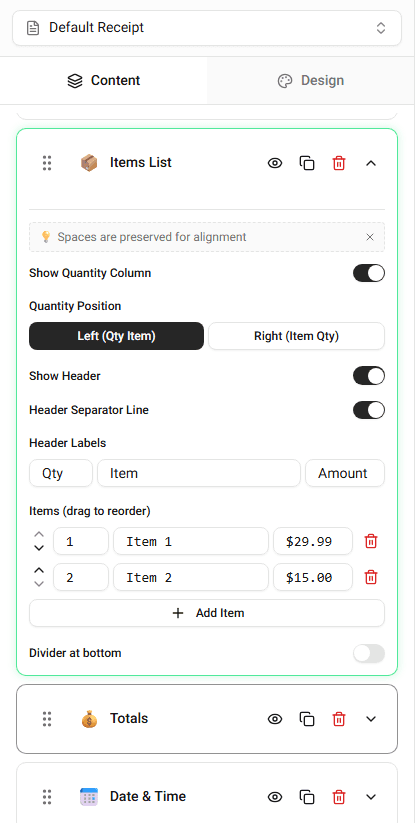
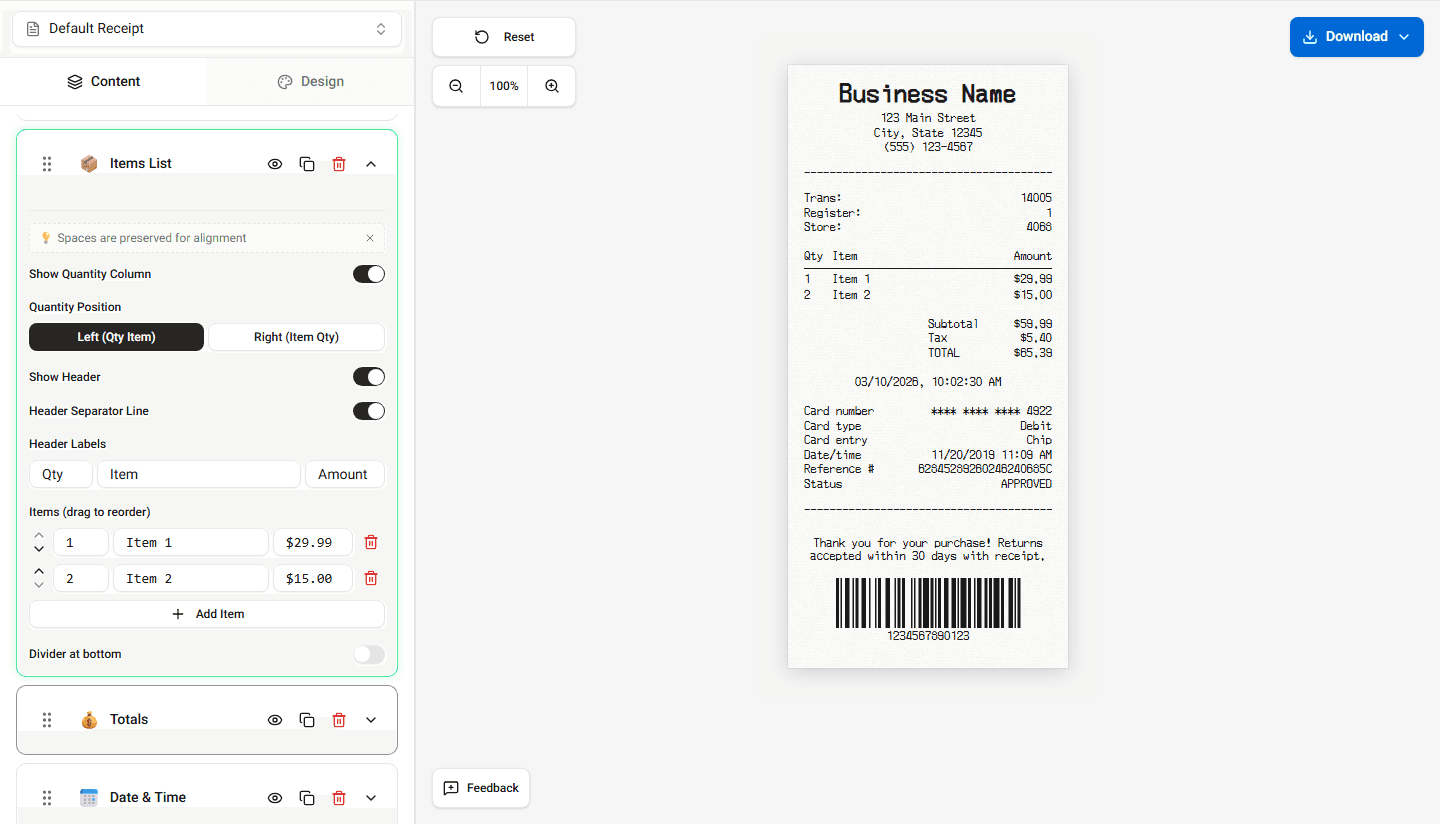
You add items using the Items List section of the builder.
Adding an Item
Follow these steps to add a new item.
Step 1 - Open the Items Section
Scroll to the Items List section in the builder.
This section contains all products included in the receipt.
Step 2 - Add a New Item
Click Add Item.
A new item row will appear in the list.
Step 3 - Enter the Item Information
Fill in the item fields.
Typical fields include:
- item name
- quantity
- unit price
The builder displays the item on the receipt preview.
Editing an Item
You can modify any item after adding it.
Change the values directly in the item fields.
For example:
- update the item name
- change the quantity
- adjust the price
The preview updates immediately.
Removing an Item
To remove an item:
-
Locate the item row.
-
Click Remove Item.
The item will disappear from the receipt preview.
Reordering Items
You can change the order of items.
Move items up or down in the list.
The receipt preview reflects the new order.
Summary
Items represent the products or services on the receipt. You add them in the Items List section and edit their name, quantity, and price.