Once your receipt is finished, you can print it directly from the builder. Printing allows you to create a physical copy of the receipt that matches the layout shown in the preview.
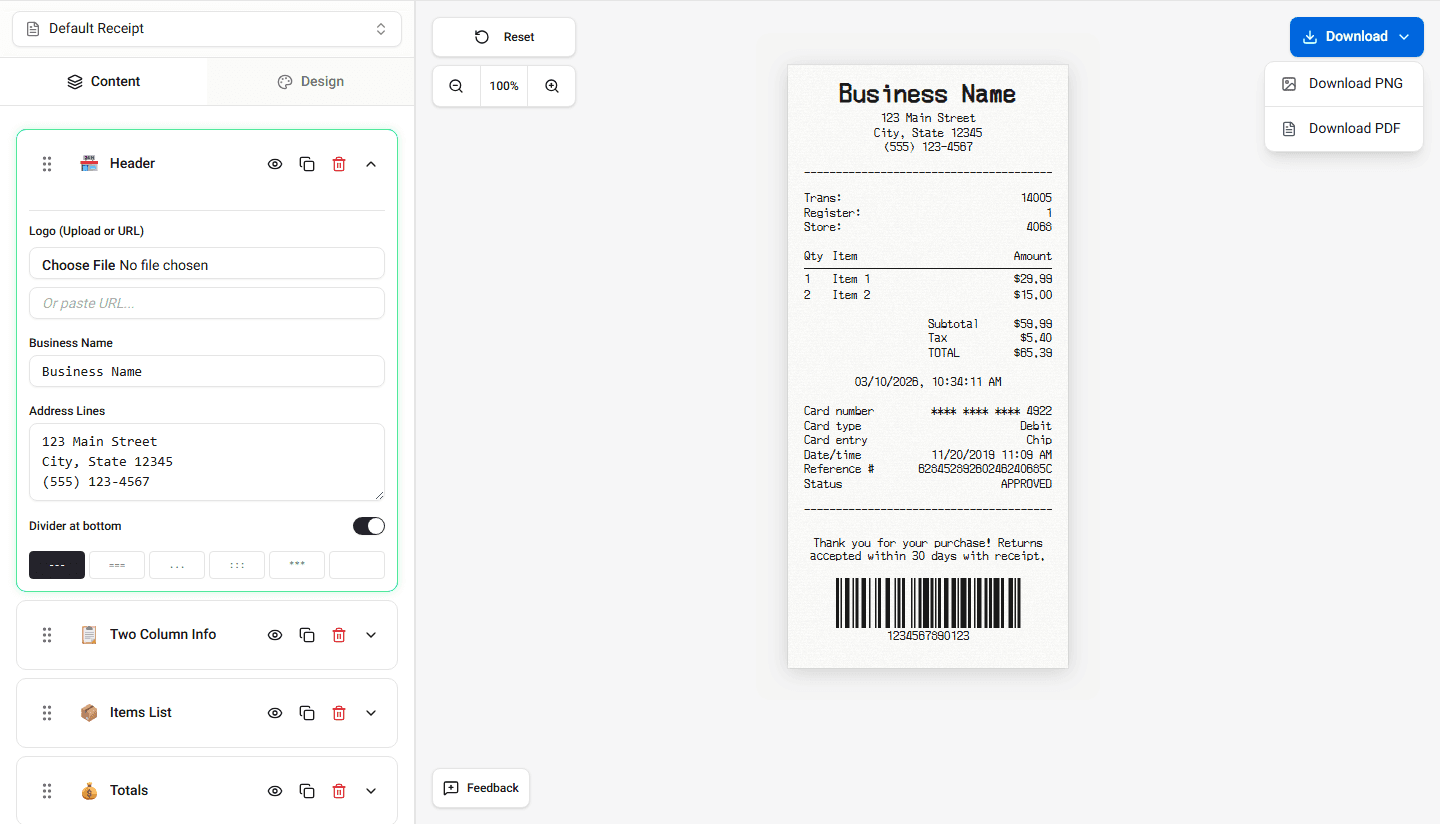
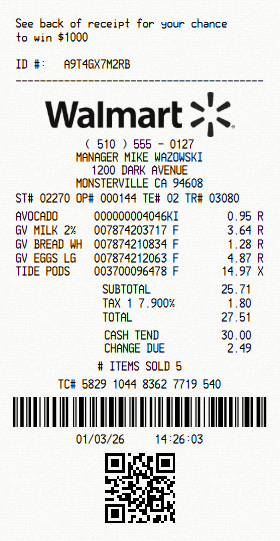
The printed receipt will reflect the same formatting, alignment, and spacing displayed in the builder preview.
Export Formats
Receipt Maker supports two export formats:
- PNG image - a high-resolution image file, ideal for sharing digitally or embedding in documents
- PDF document - a standard document format, ideal for printing or archiving
Both formats preserve the exact layout shown in the builder preview.
Preparing the Receipt for Printing
Before printing, review the receipt preview carefully.
Check the following:
- store information is correct
- item list is complete
- totals are accurate
- payment information is correct
- spacing and alignment look correct
The preview represents how the receipt will appear when printed.
Printing the Receipt
To print the receipt:
-
Click the Print option in the builder.
-
Your browser’s print dialog will open.
-
Select your printer.
-
Adjust the printer settings if necessary.
-
Click Print.
The printed output should match the receipt preview.
Printing With a Standard Printer
Most users print receipts using a regular desktop printer.
When printing with a standard printer:
- the receipt prints on standard paper (usually A4 or Letter)
- the layout keeps the narrow receipt format
- extra white space may appear around the receipt
If you want the receipt to resemble a real store receipt, you may need to trim the paper after printing.
Printing With a Thermal Printer
Retail stores typically use thermal receipt printers.
Thermal printers print on special thermal paper rolls instead of standard sheets.
Common thermal paper widths include:
- **58 mm
** - **80 mm
**
These printers produce the narrow receipt style commonly seen in stores, restaurants, and gas stations.
What Is Thermal Paper
Thermal paper is coated paper that reacts to heat instead of ink.
Thermal printers use heat to create text and graphics directly on the paper.
This means:
- no ink cartridges are required
- printing is fast
- receipts have a distinct appearance
Many store receipts are printed this way.
Printing Receipts on Thermal Printers
If you print using a thermal printer:
- select the correct paper width in the printer settings
- ensure the receipt layout fits the printer width
- review the preview before printing
The builder layout is designed to resemble the structure of receipts typically printed on thermal paper.
Printing Tips
For better results when printing receipts:
- use **portrait orientation
** - disable unnecessary margins
- preview the print layout before printing
- check that fonts and spacing appear correctly
These steps help ensure the printed receipt looks clean and readable.
Summary
You can print your receipt directly from the builder using your browser’s print function. The printed receipt will match the layout shown in the preview and can be printed on either standard paper or thermal receipt paper.