Store information appears at the top of the receipt. This section identifies the business that issued the receipt.
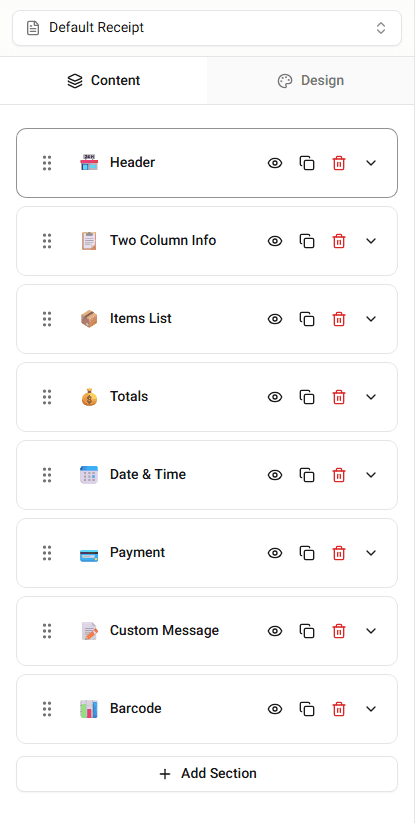
You edit this information in the Header section of the builder.
Store Information Fields
Typical store fields include:
- business name
- store address
- city and ZIP code
- phone number
- website
- store number
These values appear in the receipt header.
Editing Store Information
Follow these steps to update store details.
Step 1 - Open the Header Section
Scroll to the Header section in the builder.
This section controls the top portion of the receipt.
Step 2 - Update the Fields
Enter the store information you want to display.
For example:
- change the business name
- update the address
- add a phone number
The preview updates immediately.
Adding a Logo
Some templates allow you to display a logo.
To add a logo:
-
Open the header settings.
-
Upload the logo image.
The logo will appear above the store information.
Changing Store Details Later
You can edit store information at any time.
Updating a field instantly updates the receipt preview.
Summary
Store information appears at the top of the receipt. You edit the business name, address, and other details in the Header section.