Some receipts include more than one tax. For example, a purchase may include both state tax and local tax.
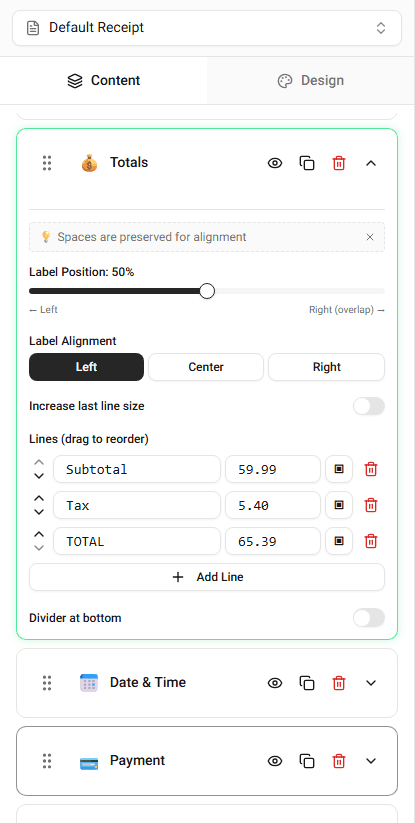
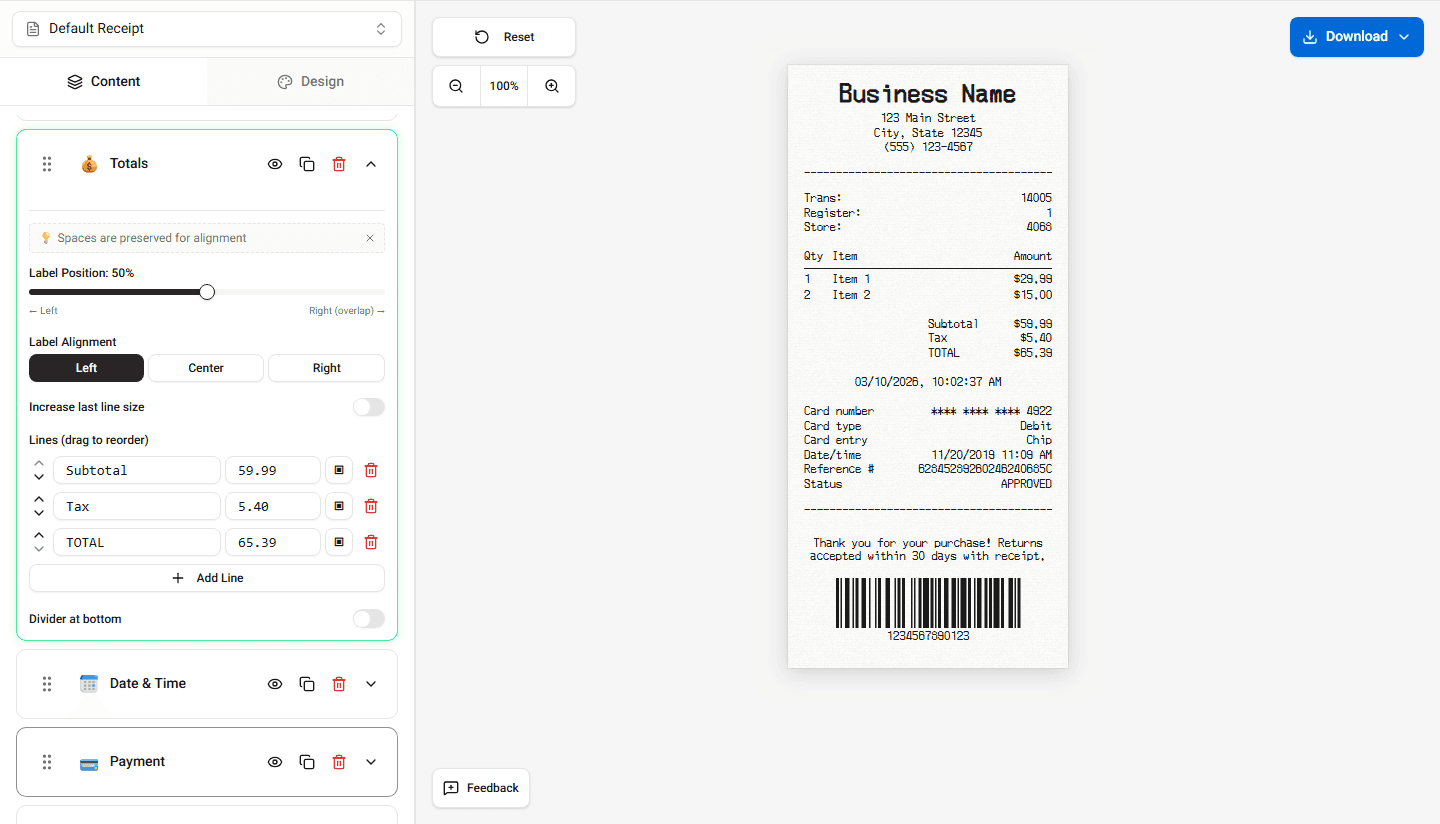
Receipt Maker allows you to display multiple tax rows in the totals section.
Where Tax Rows Appear
Tax values appear in the Totals section of the receipt.
Each tax is displayed on its own line.
Examples include:
- State Tax
- Local Tax
- VAT
Adding Another Tax Row
To add an additional tax:
-
Open the Totals section.
-
Add a new row.
-
Enter the tax label.
-
Enter the tax amount.
The new tax line will appear in the receipt preview.
Editing Tax Labels
You can customize the label for each tax.
For example:
- Sales Tax
- VAT
- City Tax
This allows the receipt to match different tax formats.
Summary
You can display multiple taxes by adding additional rows in the totals section. Each tax appears as its own line above the final total.
Last updated on