The totals section displays the financial summary of the purchase.
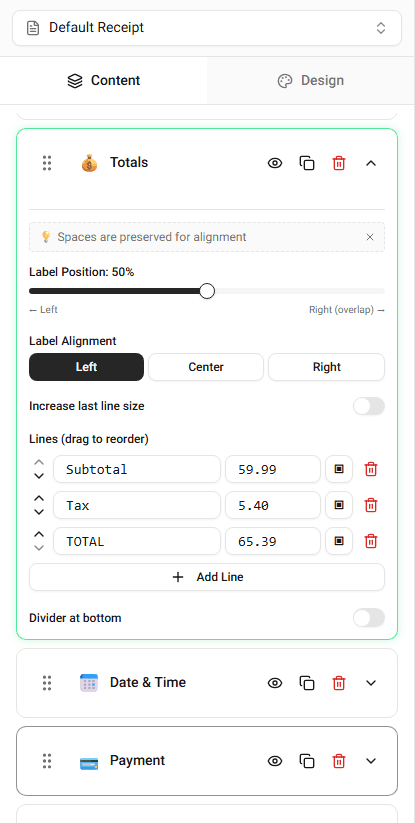
Typical values include:
- subtotal
- tax
- total
You can edit these values in the Totals section of the builder.
Understanding the Totals Section
The totals section appears near the bottom of the receipt.
It summarizes the purchase amount based on the items and tax values.
Editing Totals
Follow these steps to update totals.
Step 1 - Open the Totals Section
Scroll to the Totals section.
This section controls the financial summary.
Step 2 - Adjust the Values
Edit the totals fields.
You can change:
- subtotal
- tax amount
- final total
The preview updates instantly.
Adjusting Tax Values
If the receipt includes tax, you can change the tax value.
Update the tax rate or tax amount directly in the totals section.
The totals will update accordingly.
Adding Discounts or Extra Charges
Some templates allow additional rows.
Examples include:
- discount
- service fee
- tip
These rows appear above the final total.
Summary
The totals section displays the financial summary of the receipt. You can edit subtotal, tax, and total values directly in the Totals section.