Receipts usually include the date when the purchase occurred. This value appears near the top of the receipt in the transaction details section.
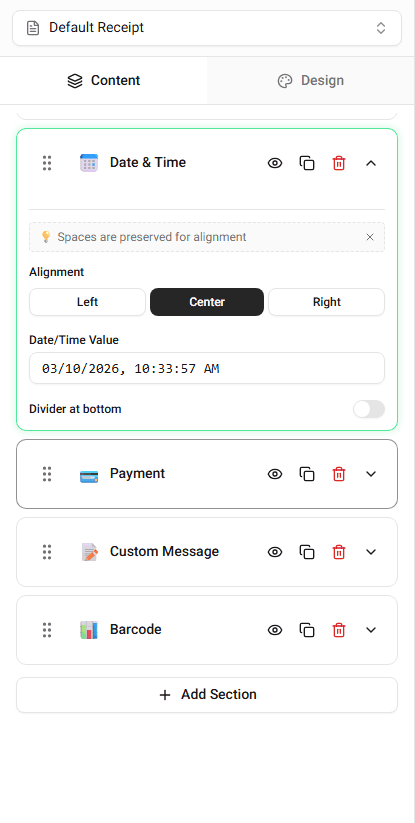
You can edit the transaction date directly in the builder.
Where the Transaction Date Appears
The transaction date typically appears below the store header.
Depending on the template, it may appear next to:
- time
- receipt number
- terminal information
The exact position may vary depending on the template layout.
Changing the Date
To edit the transaction date:
-
Locate the Date field in the builder.
-
Enter the date you want displayed.
The receipt preview updates immediately.
Date Formatting
Different templates may display the date in different formats.
Examples include:
- MM/DD/YYYY
- DD/MM/YYYY
- YYYY-MM-DD
The format depends on the template style.
Summary
The transaction date shows when the purchase occurred. You can edit the date field in the builder and the receipt preview will update instantly.