The payment section shows how the purchase was paid.
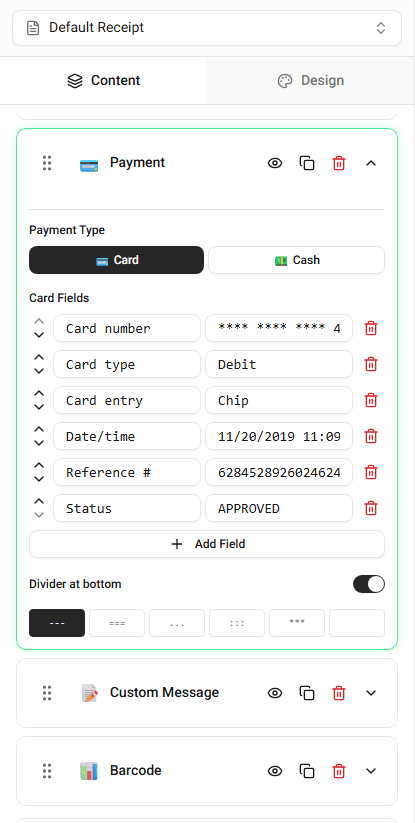
This section appears near the bottom of the receipt.
Payment Methods
You can display different payment types.
Examples include:
- cash
- credit card
- debit card
- digital payment
The payment method appears in the payment section of the receipt.
Adding Payment Information
Follow these steps to add payment details.
Step 1 - Open the Payment Section
Scroll to the Payment section.
This section controls how the payment appears on the receipt.
Step 2 - Choose the Payment Method
Select the payment type.
Examples include:
- cash
- card
- mobile payment
The selected method appears in the receipt preview.
Step 3 - Add Additional Details
Some payment types include additional fields.
Examples include:
- card last digits
- authorization code
- payment reference
Enter the details you want displayed.
Editing Payment Information
You can modify payment details at any time.
Updating the fields will immediately update the receipt preview.
Summary
The payment section shows how the purchase was paid. You can choose a payment method and add optional payment details.